

Documentation Index
Fetch the complete documentation index at: https://docs.phrony.com/llms.txt
Use this file to discover all available pages before exploring further.
Description
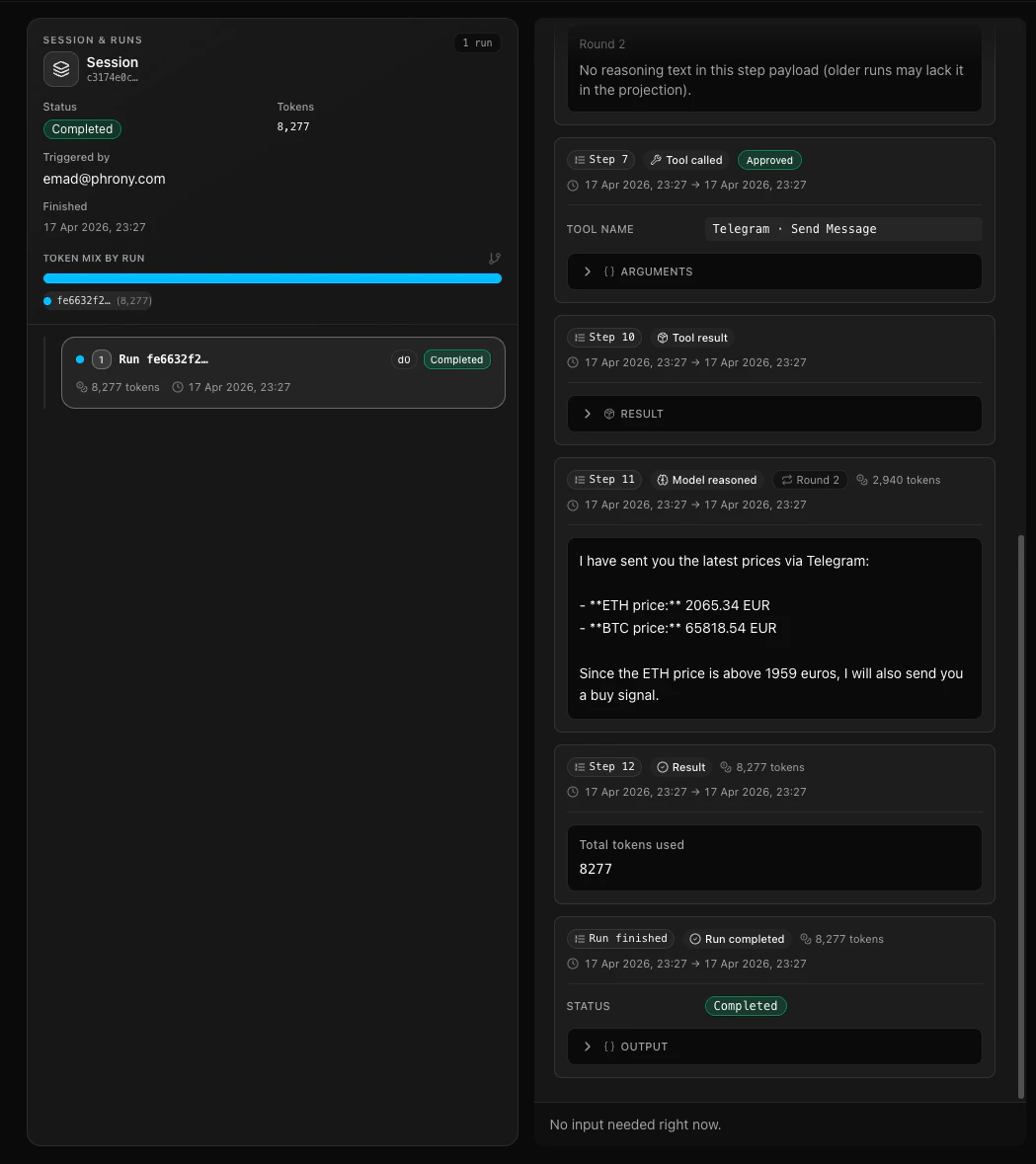
A session is the thread of work for one ongoing interaction with an agent—from first input through model and tool steps (including extra runs in the same session if your setup uses them).| Aspect | What it means |
|---|---|
| In the dashboard | Open a run, see status and token use, and use allowed actions such as stop or mark complete. |
| How it starts | A session begins when a run starts (UI, API, schedule, or event). There is no “empty session” you create by itself. |
Properties
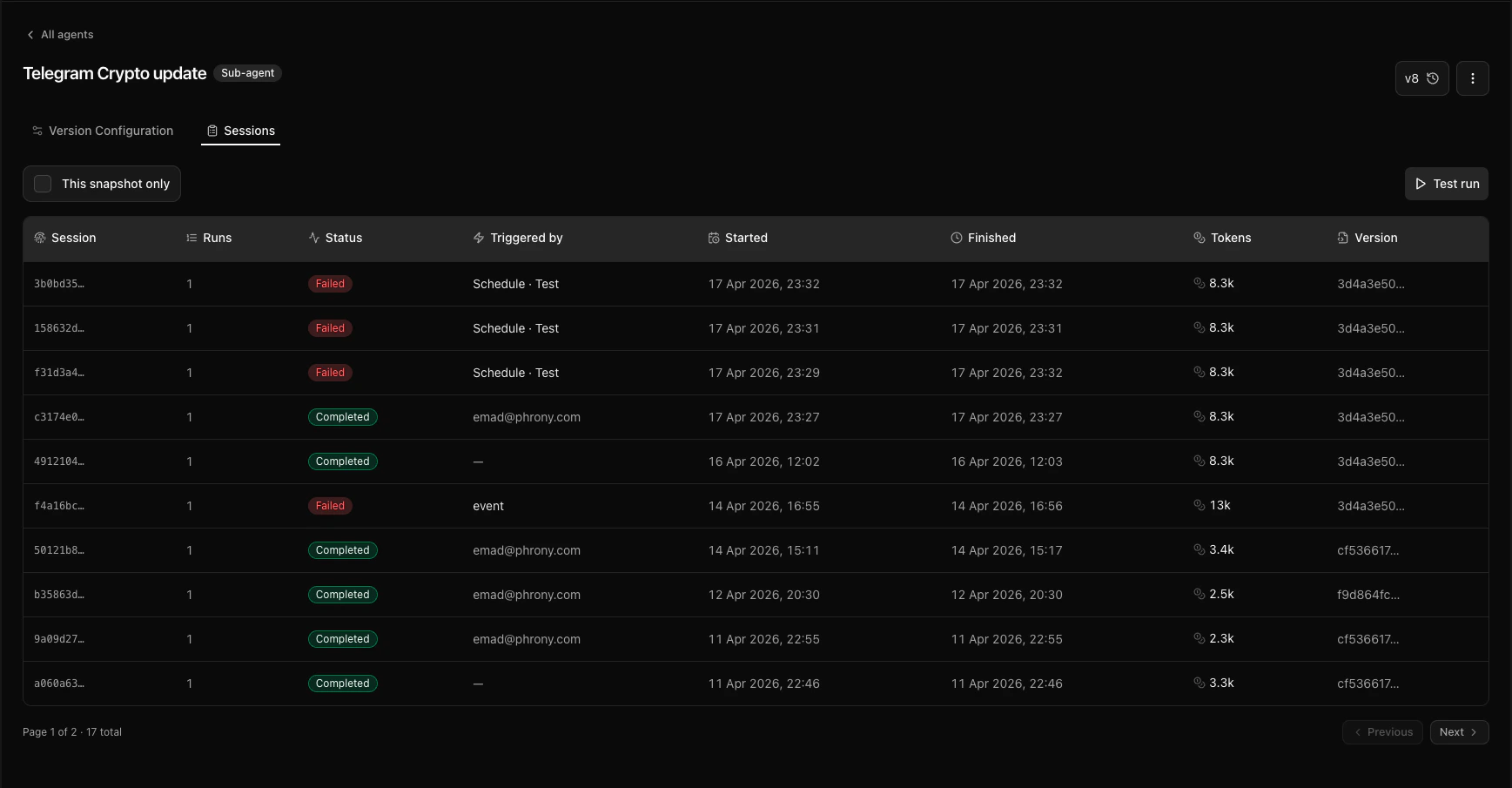
What you typically see for a session:| What you see | Description |
|---|---|
| Session | The row you open to see the full story for that work item. |
| Agent | Which agent (and which deployed or selected version was used to start, depending on the screen). |
| Status | Whether work is in progress, finished successfully, failed, or stopped, in terms the dashboard shows. |
| When it started and ended | Timestamps for the session, when the product displays them. |
| Token usage | A summary of how many tokens the session has used, where shown. |
| How it was started | For example, from the console, an API, or a schedule, plus a name for the trigger when one applies. |
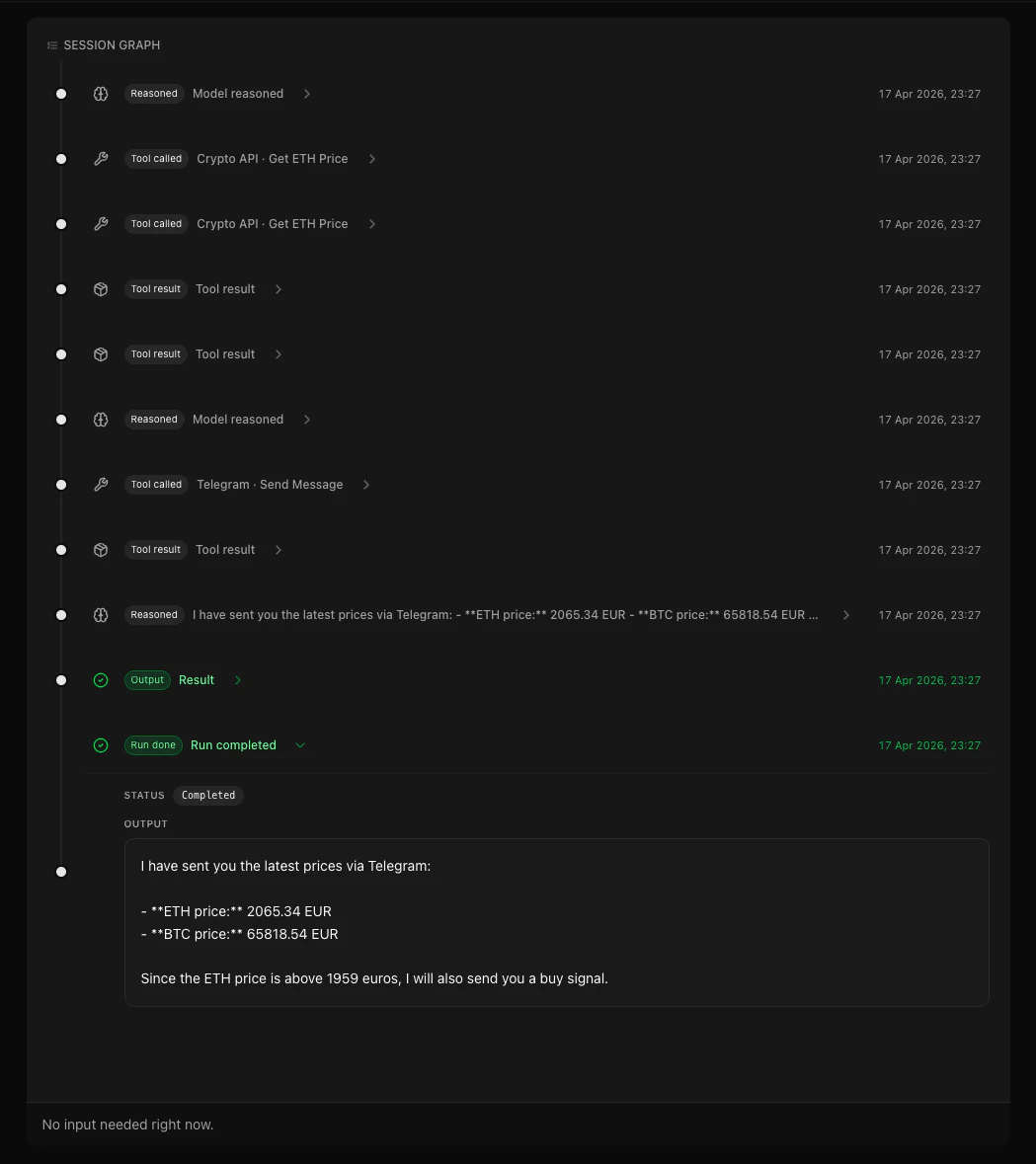
| Runs and steps | Deeper views show each run in the session and a step-by-step timeline for debugging. |
How to create, edit, and delete
Start (implicit create): A session is created when any run starts (for example from Test run on an agent, an API, or a Trigger). You never fill out a “new session” form. List sessions (workspace): Sidebar → Dashboard → Recent sessions → optional status filter. Click a Session id to open its run, or the Agent name to open that agent. List sessions (per agent): Agents → choose an agent → Sessions. Mark complete or terminate (operator): On Dashboard → Recent sessions, open Session actions (⋯) on a row. Choose Mark complete when offered (not every status allows it). To stop work, choose Terminate session → confirm Terminate session? (in-progress runs in this session will fail; you can’t undo this) → Terminate. View timeline: From Recent sessions, open the Session or Agent link, or go Agents → agent → Sessions and open the run or session you need. Edit / delete: There is no form to “edit” a past session. Operator actions are Mark complete and Terminate as above. Long-term retention is governed by your contract and settings, not a delete button in this table.Notes
- Approvals and forms in the product are tied to a session (and a specific run inside it), often as a user task, when the root agent is in HITL mode. Request-mode root agents do not pause for operation Require approval flows; see Require approval and Request mode.
- You may view sessions from an agent page, from a global list, or from dashboard views, depending on your role and layout.
- The newest activity can take a very short time to show up in a list when traffic is high—refresh or open the session details if the row looks a step behind.
- For embedded agents, HTTP conversation and stream responses may be redacted (output-only timeline, cleared session input metadata) when the API trigger turns off Expose step timeline to API clients; the in-product session view stays full. See API redaction.
Warnings
- Stopping a session aborts in-flight work; use only when you mean to end execution.
- Marking complete for operator workflows can leave a special note on the run for audit; align with your team on when to use that instead of a natural completion.
- Do not use operator-only actions in production without a clear runbook so you do not strand users mid-flow.