Documentation Index
Fetch the complete documentation index at: https://docs.phrony.com/llms.txt
Use this file to discover all available pages before exploring further.
Description
An integration is how you connect the Phrony platform to systems outside the model—your own APIs, or services from the built-in catalog—so an agent can act on real systems (read and write data, call external services) instead of only answering in chat. You need integrations whenever work should be grounded in your tools and data under your workspace and security boundaries, not left to the model alone.
Properties — Integration (list and connection)
| What you see | Description |
|---|
| Name | Label for the integration in lists and on its detail page. |
| Type | Built-in or HTTP. |
| Base URL | For HTTP, the connector’s root URL. For built-in, the list shows the toolkit name here instead of a URL. |
| Ops | Number of operations on this integration. |
| Created | When the integration was created. |
HTTP connection
| What you configure | What it does |
|---|
| Base URL | Root URL; each operation’s path is appended to this. |
| Always require approval | HITL root agents: every call through this connector waits for approval unless a single operation overrides. Request root agents: those calls do not execute and do not queue approvals. |
| Authentication | None; API key header; Bearer token; or Grant credentials (JSON secret) (optional header templates using {{fieldName}} from the decrypted JSON). |
| Default headers | Sent on every request unless an operation overrides them. Values may use {{secrets.NAME}} (see Secret). |
| Default query parameters | Same as default headers for query string defaults. |
| Secrets in auth | You pick secrets by name from dropdowns; the raw value is not shown again after you save. |
Built-in connection
| What you see | What it means |
|---|
| Toolkit | Which catalog service this integration uses. |
| Connection status | Whether an account is linked, or Not connected. |
| Display name | Editable label; Save to update. |
| Changing toolkit or account | Not done on this page—create a new integration and connect again. |
What is an operation?
The integration is the connection to a system (your HTTP API or a built-in toolkit account). An operation is one concrete action you expose from that connection—the unit that becomes a tool the model can use when you allow it on an agent version.
| Level | Role |
|---|
| Integration | Shared settings: where to connect, how to authenticate, defaults for every call. |
| Operation | A single callable tool: for HTTP, one request pattern (method, path, …); for built-in, one catalog tool you turned on. |
| Agent version | You pick which operations (tools) that version may invoke—nothing else is visible to the model. |
Properties — Operation
HTTP operation
| What you configure | What it does |
|---|
| Name, Description | What the model sees for this tool. |
| HTTP method, Path | Path may use {{name}} for segments that match argument names. |
| Request headers, Query parameters, Body template (optional) | Use {{parameterName}} where the runtime should inject arguments. |
| Tool arguments schema | JSON schema for parameters the model sends; omit if there are no arguments. Placeholders refer to these names. |
| Require approval for this operation | When the root agent is HITL, pauses the run for approval. For Request agents, the call does not run; see Human in the loop (HITL). Works with connector Always require approval on HTTP integrations. |
Built-in operation
| What you configure | What it does |
|---|
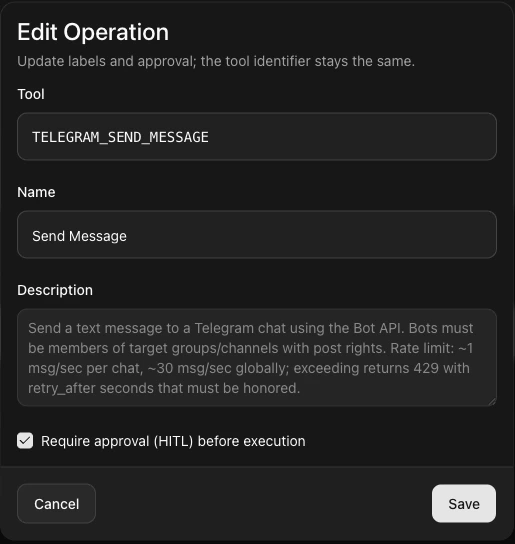
| Name | Editable label for the operation. |
| Description | Read-only (comes from the catalog tool). |
| Tool (slug) | Read-only identifier for the underlying tool. |
| Require approval (HITL) before execution | When the root agent is HITL, pauses the run for approval before this tool runs. For Request agents, the call does not run. |
Operations list (detail page)
| Integration type | What the list represents |
|---|
| Built-in | Each row is a catalog tool you exposed; agents can allow it on a version. |
| HTTP | Each row is one HTTP endpoint exposed as a tool (method, path, optional headers and body). |
Approval (HITL): integration level vs operation level
Human-in-the-loop (HITL) pauses a run until someone approves or rejects in the Phrony dashboard (often as a user task). HTTP integrations can require approval for the whole connector and/or per operation. Built-in integrations only have per operation approval—the operation-level behavior is the same as on HTTP (only the control label in the form differs).
Agent execution mode matters: These approval settings only take effect as dashboard pauses when the session root agent is in HITL mode. For a Request-mode root agent, tools marked Require approval are not executed and do not open an approval task—the model receives an error instead. See Require approval and Request mode.
Integration level (HTTP only)
| Control | Effect |
|---|
| Always require approval (Connection card) | HITL root: default is that every outbound call waits for a human, unless an operation overrides that (see the switch help text: unless overridden per operation). Request root: calls that would require approval do not execute. |
Operation level (HTTP and built-in)
| What | Effect |
|---|
| Same behavior | For HITL root agents, pauses for approval when this tool runs. For Request root agents, the tool does not run. Configure when you add or edit an operation. |
| Labels in the product | HTTP: Require approval for this operation. Built-in: Require approval (HITL) before execution in Edit Operation. |
Practical notes
- Turning on approval at both levels on busy tools can create a large approval queue; start with the narrowest scope that meets your risk bar.
- Approvals show up for operators like other user tasks; train people on reject paths so downstream runs fail in an expected way.
How to create, edit, and delete
Open the list: Sidebar → Integrations.
Add — primary button: On the integrations table, Add Integration opens the Add Integration dialog.
Add — Quick Create: Quick Create → New Integration (same dialog).
In Add Integration:
- Set Name (the label used across the dashboard and when assigning operations to agents).
- Set Integration type to Built-in or HTTP.
- HTTP — Set Base URL, Authentication, defaults, and Always require approval as needed → Create. You are taken to the integration page, usually prompted to Add Operation next.
- Built-in — Pick a toolkit from the catalog, search if needed, then complete OAuth or API key in the same dialog. Finishing connect creates the integration (there is no separate Create for this path) and opens the integration page, usually with Add Operation next.
Open an integration: Click the Name link in the table, or the row ⋯ menu → Edit.
Edit connection: On the detail page, use the Connection card → change fields → Save. HTTP updates base URL, auth, and defaults. Built-in updates Display name; toolkit and account stay as configured at create time.
Delete integration (list): Row ⋯ → Delete → Delete integration? (warning: removes the integration and all operations; agent versions lose those links) → Delete.
Delete integration (detail): Delete integration (top right) → Delete this integration? (“All operations will be removed. This cannot be undone.”) → Delete.
Add operations — built-in: Add Operation → Add Operations → search with Search tools… → select one or more tools → Add selected. Each becomes an operation with the provider’s argument schema.
Add operations — HTTP: Add Operation → fill method, path, headers, body, arguments schema, and approval as needed → Create.
Edit operation — built-in: Open Edit Operation from the row menu. Change Name and Require approval (HITL) before execution; the underlying tool does not change → Save.
Edit operation — HTTP: Edit Operation → update fields including Tool arguments schema and approval → Save.
Delete operation: Row ⋯ → Delete → Delete operation? (“Agent versions that allowed this operation will no longer reference it.”) → Delete.
Notes
- Billing may cap custom HTTP integration count and integration calls per period; see your plan and usage in the dashboard.
- Event triggers (on an agent) need a built-in integration with an active connection; if none qualify, the product surfaces that in the trigger editor.
- Use Secret Manager for credentials; integrations store references to secrets, not the raw values.
Warnings
- Wrong path, body template, or arguments schema on an HTTP operation causes failed tool calls in runs; test on a non-production agent version first.
- Deleting an integration or operation that agents (with deployed versions) or triggers still rely on will break those runs until you update the agent or trigger configuration.
- Always require approval at the HTTP connector plus per-operation approval can create a large user task queue; enable only where a human must confirm each call.